
Table of Contents:
Product Overview
A plug-and-play USB adapter that gives a connected device, such as a laptop or PC, access to a Wi-Fi HaLow network without needing to install drivers or software. The adapter is paired with an Access Point and leverages the Access Point's network connection.
Product Images and Packaging Contents
1 x USB-A Driverless Dongle (L 86mm x W 30mm)
1 x SMA Wi-FI HaLow Antenna (L 195mm)
1 x Quick Start Guide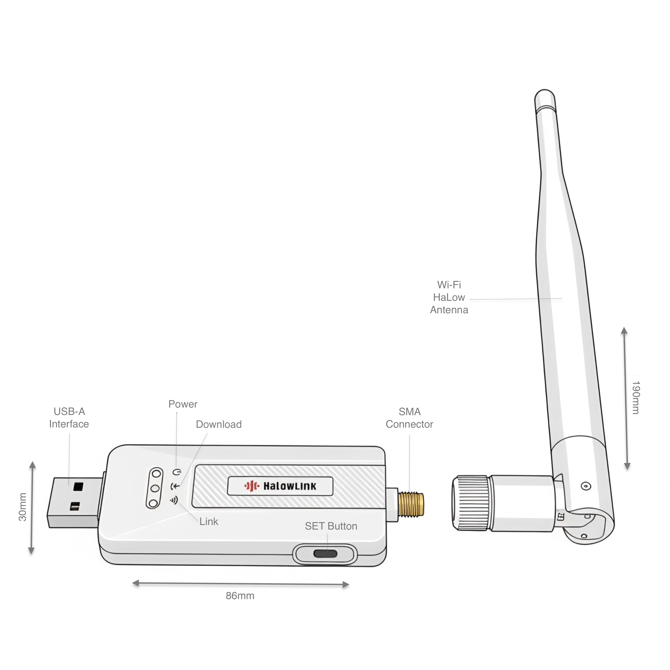
Technical Specification
Connectivity |
Decription |
|
Wireless standard |
IEEE 802.11ah (Wi-Fi HaLow) |
|
Wi-Fi HaLow chipset |
Morse Micro MM8108 |
|
Frequency band |
Sub-1 GHz license-exempt (850–950 MHz; region-dependent) |
|
Max data rate |
Up to 43.33 Mbps (8 MHz channel, 256-QAM) |
|
Antenna |
External SMA stick antenna |
|
Security |
WPA3 |
Hardware |
Decription |
|
CPU |
Morse Micro MM8108 Wi-Fi HaLow SoC |
|
Dimensions |
86mm x 30mm |
|
Materials |
Polymer Housing |
|
Colour |
White |
|
Ports |
USB-A (USB 2.0 High-Speed) |
|
Connector |
SMA |
|
Buttons |
Single SET Button: Push-Button pairing (press) & factory reset (press-and-hold) |
|
Indicators |
Power (Green), Download (Blue) and Wi-Fi HaLow (Purple/Red) |
|
Power input |
USB bus-powered, 5 V |
|
Ingress protection |
IP54 |
Connectivity |
Decription |
|
Platform |
Driverless CDC-NCM Ethernet-over-USB with CDC-ACM serial control interface; MM8108 full-stack firmware booted from on-board QSPI flash |
|
App support |
HaLowLink app; optional web app and serial tools for setup/diagnostics |
|
Firmware update |
DFU mode (button-held insertion) |
|
Pairing |
On-device DPP QR code |
|
Management |
Easy Setup Web-app for HaLow SSID/password setup and firmware upgrade | CDC-ACM/MMAGIC serial interface for advanced configuration on Windows and macOS |
|
OTA updates |
Firmware update via DFU mode and drag-and-drop web app (no OTA radio update mechanism stated) |
Compatibility |
Decription |
|
Computer/ Laptops |
Works with Windows, MacOS and Linux |
|
Phones/ Tablets |
Works with Android and iOS devices but requires a USB converter |
Pairing Instructions
Before you begin any of the below pairing methods, please ensure your Access Point is already paired to your account.
Pairing via HaLowLink App (Recommended)
-
Insert the dongle into your laptop/computer
-
The Wi-Fi HaLow LED will begin to flash PURPLE twice per second, indicating that it’s in pairing mode.
-
Open the HaLowLink app and sign in to your account.
-
To pair a new device, tap the “+” icon located in the top right corner.
-
Scan the QR code on the Dongle.
-
Follow the instructions on the app to complete the pairing process.
- If pairing was successful, the Wi-Fi HaLow LED will flash purple once per second.
- If the Wi-Fi HaLow LED flashes red, pairing was not successful.
Pairing via Button-Press
Only perform this step if the QR Code is missing or if pairing has failed. Push button pairing will help pair the Dongle to the Access Point, but it will not associate the Dongle to your account. Please contact support for a copy of the QR code.
-
Restart the USB Dongle by removing it from your device, then reinsert it.
-
Hold the SET button on the Access Point for 1 second.
-
The Wi-Fi HaLow LED should start flashing purple once per second.
-
Then, press the button on the Dongle once.
-
The Wi-Fi HaLow LED should begin flashing purple twice per second. This process may take up to 1 minute for both devices to finalise the handshake.
Pairing via Device Portal (Without App)
-
Set up the Access Point or a Wi-Fi HaLow compatible router and ensure that it’s already connected to your home network.
-
Open the HaLowLink Dongle Management web app - dongle.halowlink.com
-
Connect the Dongle to the USB-A port on your computer/laptop.
-
Select “Connect Serial”
-
Select the “Wi-Fi HaLow Dongle” from the list and hit “Connect”
-
Open the Config tab and enter in the Access Point’s SSID and password.
You can find the default credentials from underneath the Access Point. -
Click the orange “Write to Device” button when ready. This pairing process should take less than 5 seconds.
- If the pairing was successful, a green “HaLow Connected” message will appear.
- If the pairing failed or continues to load for an extended period, refresh the page and check the SSID/Password (from the app) is correct before entering it in again.
Device Discovery and Connection
Windows, Linus & MacOS
When connected to a Windows computer or laptop, the driverless dongle creates an Ethernet network interface while allowing the device to remain connected to its existing wireless network.
Mobile devices - Android & iOS
Compatible Android and iOS devices can use the dongle as a wired network connection with a USB-A to USB-C converter. Some devices may require user approval or network configuration before use.
HaLow Network Connectivity
The HaLowLink Dongle does not work on it’s own and will require a compatible Wi-Fi HaLow device such as a HaLowLink Access Point or Network Bridge.
LED Behaviour
Indicators
|
LED Name |
Symbol |
Location |
Color |
|
Power |
|
Top/Left |
🟢 Green |
|
Download |
|
Center |
🔵 Blue |
|
Wi-Fi HaLow |
|
Bottom/Right |
🟣 Purple 🔴 Red |


Device Status Definition
|
LED Name |
Behaviour |
Dongle State |
Detail |
|
Power |
Solid Green |
Power is ON. |
The Power LED turns solid green as soon as the dongle is inserted into the USB port. |
|
Download |
Slow blinking purple |
DFU mode |
The dongle has entered DFU mode, in preparation for an update. |
|
Download |
Continuous Blinking Purple |
Updating Firmware |
A firmware update is in progress. Do not disconnect the Dongle. |
|
Wi-Fi HaLow |
Single Blinking Purple |
Connected to AP |
The dongle successfully connected to the AP. |
|
Wi-Fi HaLow |
Double Blinking Purple |
Pairing Mode |
The dongle is ready for pairing. |
|
Wi-Fi HaLow |
Quick Double Blinking Purple |
DPP Pairing Mode |
The dongle has entered push-button pairing mode |
|
Wi-Fi HaLow |
Triple Blinking Purple |
Connecting |
The dongle is attempting to connect using saved credentials. |
|
Wi-Fi HaLow |
Continuous Blinking Red |
Factory Reset |
Factory reset has initiated. |
|
Wi-Fi HaLow |
Single Blinking Red |
Pairing Failed |
Pairing was not successful. |
Firmware Update
Before you begin, download a copy of the firmware file to your computer. Unzip the file and save it to a location you can easily find (e.g. Desktop or Downloads).

- Insert the Dongle into the USB port of the computer.
- Open the HaLowLink Dongle Management web app - dongle.halowlink.com
- Select “Connect Serial”
- Select the “Wi-Fi HaLow Dongle” from the list and hit “Connect”
- Open the “Flash” tab
- Click/tap on “Click to browse” and navigate to the location of the firmware file. You can also 'drag and drop' the file into the box, if you have the folder already open.
- At the bottom, select “Enter DFU Mode”
Do not unplug the dongle while the firmware update is in progress. Doing so may cause the device to stop working.
- When ready, select "Connect Bootloader & Flash" to begin the update.
Troubleshooting
- If pairing was successful, the Wi-Fi HaLow LED will flash PURPLE once per second.
- If pairing fails, the Wi-Fi HaLow LED will flash RED. When this happens, simple reset the dongle to factory default.
How to Factory Reset the Device
- Connect the Dongle to a laptop or PC.
- Press and hold the push button on the Dongle for 5 seconds.
- The Wi-FI HaLow LED will flash red briefly and then return to pairing mode, flashing purple twice per second.
Firmware Update Failed - Error Code: Failed to establish LLC sync with device
Sample image of the error code:
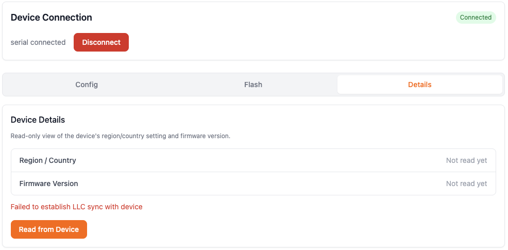
The error code “Failed to establish LLC sync with device” usually means the firmware file selected was either incorrect or corrupt. Please try the following:
- Check the file name and ensure that it’s the correct one.
- Download the firmware file again and save it to a location that is easily accessible.
- Reboot the dongle by removing it from the USB port.
Connection Issues
If you are unable to connect your Dongle to the Access Point or you’ve experience poor or no internet when using the dongle, here’s a few things to check:
- The Access Point is turned off or has gone offline.
- You’ve changed the SSID or Password of the Access Point.
- Your Dongle is too close to the access point.
- The distance is too far from the Access Point .
- The antenna is either missing or incorrect
- The firmware is outdated and needs to be updated to the latest version.